يتم التشغيل بواسطة Blogger.

آخر الحلقات عن الفيسبوك

آخر حلقات الويندوز

الاقسام

آخر الحلقات الحصرية

صوت وصورة

أخبار المشاهير

توقيت المغرب

رياضة عالمية

Main Post

آخر الحلقات عن الانترنت

آخر حلقات الحماية من الهاكرز

أقسام

Send Quick Massage

الاسم

بريد إلكتروني *

رسالة *

إشترك بالمدونة

الكتاب الرسميون

الدولي

آخر الحلقات عن منتجات جوجل

المشاركات الشائعة

عن الموقع

my

Visitors

‏إظهار الرسائل ذات التسميات howto; General Hacking. إظهار كافة الرسائل

الأحد، 25 يوليو 2010

Physical Security


Physical Security

The first layer of security you need to take into account is the physical security of your computer systems. Who has direct physical access to your machine? Should they? Can you protect your machine from their tampering? Should you?
How much physical security you need on your system is very dependent on your situation, and/or budget.
If you are a home user, you probably don't need a lot (although you might need to protect your machine from tampering by children or annoying relatives). If you are in a lab, you need considerably more, but users will still need to be able to get work done on the machines. Many of the following sections will help out. If you are in an office, you may or may not need to secure your machine off-hours or while you are away. At some companies, leaving your console unsecured is a termination offense.
Obvious physical security methods such as locks on doors, cables, locked cabinets, and video surveillance are all good ideas, but beyond the scope of this document. :)

3.1. Computer locks

Many modern PC cases include a "locking" feature. Usually this will be a socket on the front of the case that allows you to turn an included key to a locked or unlocked position. Case locks can help prevent someone from stealing your PC, or opening up the case and directly manipulating/stealing your hardware. They can also sometimes prevent someone from rebooting your computer from their own floppy or other hardware.
These case locks do different things according to the support in the motherboard and how the case is constructed. On many PC's they make it so you have to break the case to get the case open. On some others, they will not let you plug in new keyboards or mice. Check your motherboard or case instructions for more information. This can sometimes be a very useful feature, even though the locks are usually very low-quality and can easily be defeated by attackers with locksmithing.
Some machines (most notably SPARC's and macs) have a dongle on the back that, if you put a cable through, attackers would have to cut the cable or break the case to get into it. Just putting a padlock or combo lock through these can be a good deterrent to someone stealing your machine.

3.2. BIOS Security

The BIOS is the lowest level of software that configures or manipulates your x86-based hardware. LILO and other Linux boot methods access the BIOS to determine how to boot up your Linux machine. Other hardware that Linux runs on has similar software (Open Firmware on Macs and new Suns, Sun boot PROM, etc...). You can use your BIOS to prevent attackers from rebooting your machine and manipulating your Linux system.
Many PC BIOSs let you set a boot password. This doesn't provide all that much security (the BIOS can be reset, or removed if someone can get into the case), but might be a good deterrent (i.e. it will take time and leave traces of tampering). Similarly, on S/Linux (Linux for SPARC(tm) processor machines), your EEPROM can be set to require a boot-up password. This might slow attackers down.
Another risk of trusting BIOS passwords to secure your system is the default password problem. Most BIOS makers don't expect people to open up their computer and disconnect batteries if they forget their password and have equipped their BIOSes with default passwords that work regardless of your chosen password. Some of the more common passwords include:
j262 AWARD_SW AWARD_PW lkwpeter Biostar AMI Award bios BIOS setup cmos AMI!SW1 AMI?SW1 password hewittrand shift + s y x z
I tested an Award BIOS and AWARD_PW worked. These passwords are quite easily available from manufacturers' websites and http://astalavista.box.sk and as such a BIOS password cannot be considered adequate protection from a knowledgeable attacker.
Many x86 BIOSs also allow you to specify various other good security settings. Check your BIOS manual or look at it the next time you boot up. For example, some BIOSs disallow booting from floppy drives and some require passwords to access some BIOS features.
Note: If you have a server machine, and you set up a boot password, your machine will not boot up unattended. Keep in mind that you will need to come in and supply the password in the event of a power failure. ;(

3.3. Boot Loader Security

The various Linux boot loaders also can have a boot password set. LILO, for example, has password and restricted settings; password requires password at boot time, whereas restricted requires a boot-time password only if you specify options (such as single) at the LILO prompt.
>From the lilo.conf man page:
password=password
The per-image option `password=...' (see below) applies to all images.

restricted
The per-image option `restricted' (see below) applies to all images.

password=password
Protect the image by a password.

restricted
A password is only required to boot the image if
parameters are specified on the command line
(e.g. single).
Keep in mind when setting all these passwords that you need to remember them. :) Also remember that these passwords will merely slow the determined attacker. They won't prevent someone from booting from a floppy, and mounting your root partition. If you are using security in conjunction with a boot loader, you might as well disable booting from a floppy in your computer's BIOS, and password-protect the BIOS.
Also keep in mind that the /etc/lilo.conf will need to be mode "600" (readable and writing for root only), or others will be able to read your passwords!
>From the GRUB info page: GRUB provides "password" feature, so that only administrators can start the interactive operations (i.e. editing menu entries and entering the command-line interface). To use this feature, you need to run the command `password' in your configuration file (*note password::), like this:
password --md5 PASSWORD
If this is specified, GRUB disallows any interactive control, until you press the key
and enter a correct password. The option `--md5' tells GRUB that `PASSWORD' is in MD5 format. If it is omitted, GRUB assumes the `PASSWORD' is in clear text.
You can encrypt your password with the command `md5crypt' (*note md5crypt::). For example, run the grub shell (*note Invoking the grub shell::), and enter your password:
grub> md5crypt Password: ********** Encrypted: $1$U$JK7xFegdxWH6VuppCUSIb.
Then, cut and paste the encrypted password to your configuration file.
Grub also has a 'lock' command that will allow you to lock a partition if you don't provide the correct password. Simply add 'lock' and the partition will not be accessable until the user supplies a password.
If anyone has security-related information from a different boot loader, we would love to hear it. (grub, silo, milo, linload, etc).
Note: If you have a server machine, and you set up a boot password, your machine will not boot up unattended. Keep in mind that you will need to come in and supply the password in the event of a power failure. ;(

3.4. xlock and vlock

If you wander away from your machine from time to time, it is nice to be able to "lock" your console so that no one can tamper with, or look at, your work. Two programs that do this are: xlock and vlock.
xlock is a X display locker. It should be included in any Linux distributions that support X. Check out the man page for it for more options, but in general you can run xlock from any xterm on your console and it will lock the display and require your password to unlock.
vlock is a simple little program that allows you to lock some or all of the virtual consoles on your Linux box. You can lock just the one you are working in or all of them. If you just lock one, others can come in and use the console; they will just not be able to use your virtual console until you unlock it. vlock ships with RedHat Linux, but your mileage may vary.
Of course locking your console will prevent someone from tampering with your work, but won't prevent them from rebooting your machine or otherwise disrupting your work. It also does not prevent them from accessing your machine from another machine on the network and causing problems.
More importantly, it does not prevent someone from switching out of the X Window System entirely, and going to a normal virtual console login prompt, or to the VC that X11 was started from, and suspending it, thus obtaining your privileges. For this reason, you might consider only using it while under control of xdm.

3.5. Security of local devices

If you have a webcam or a microphone attached to your system, you should consider if there is some danger of a attacker gaining access to those devices. When not in use, unplugging or removing such devices might be an option. Otherwise you should carefully read and look at any software with provides access to such devices.

3.6. Detecting Physical Security Compromises

The first thing to always note is when your machine was rebooted. Since Linux is a robust and stable OS, the only times your machine should reboot is when you take it down for OS upgrades, hardware swapping, or the like. If your machine has rebooted without you doing it, that may be a sign that an intruder has compromised it. Many of the ways that your machine can be compromised require the intruder to reboot or power off your machine.
Check for signs of tampering on the case and computer area. Although many intruders clean traces of their presence out of logs, it's a good idea to check through them all and note any discrepancy.
It is also a good idea to store log data at a secure location, such as a dedicated log server within your well-protected network. Once a machine has been compromised, log data becomes of little use as it most likely has also been modified by the intruder.
The syslog daemon can be configured to automatically send log data to a central syslog server, but this is typically sent unencrypted, allowing an intruder to view data as it is being transferred. This may reveal information about your network that is not intended to be public. There are syslog daemons available that encrypt the data as it is being sent.
Also be aware that faking syslog messages is easy -- with an exploit program having been published. Syslog even accepts net log entries claiming to come from the local host without indicating their true origin.
Some things to check for in your logs:
  • Short or incomplete logs.
  • Logs containing strange timestamps.
  • Logs with incorrect permissions or ownership.
  • Records of reboots or restarting of services.
  • missing logs.
  • su entries or logins from strange places.

الأربعاء، 14 يوليو 2010

Modifier mot de passe Windows depuis Ubuntu


Windows est faible, tout le monde le sait. Un mot de passe de session Windows n’est qu’une barrière physique visant à décourager les pirates lambdas. Mais il est tellement simple d’accéder à une session Windows protégée par mot de passe :)
La preuve dans la suite.
Ce tutoriel a un but instructif. Fotozik ne pourra être tenu pour responsable de vos quelconques actes malveillants.
Ce hack fonctionne pour toutes les versions de Windows 2000 à Windows 7.
Il vous faudra:
- un Live CD ubuntu (9.10 de préférence)
- le paquet chntpw (http://packages.ubuntu.com/lucid/chntpw)
C’est tout, je peux accéder à n’importe quel ordinateur Windows avec ça? Oui, c’est tout.

Etape 1:

démarrez le Live CD Ubuntu (il suffit la plupart du temps d’allumer l’ordinateur avec le cd à l’intérieur).

Etape 2:

installez le paquet chntpw. Soit vous l’avez sur une clé usb et vous double-cliquez dessus, soit vous le téléchargez depuis l’adresse http://packages.ubuntu.com/lucid/chntpw et vous double-cliquez dessus.

Etape 3:

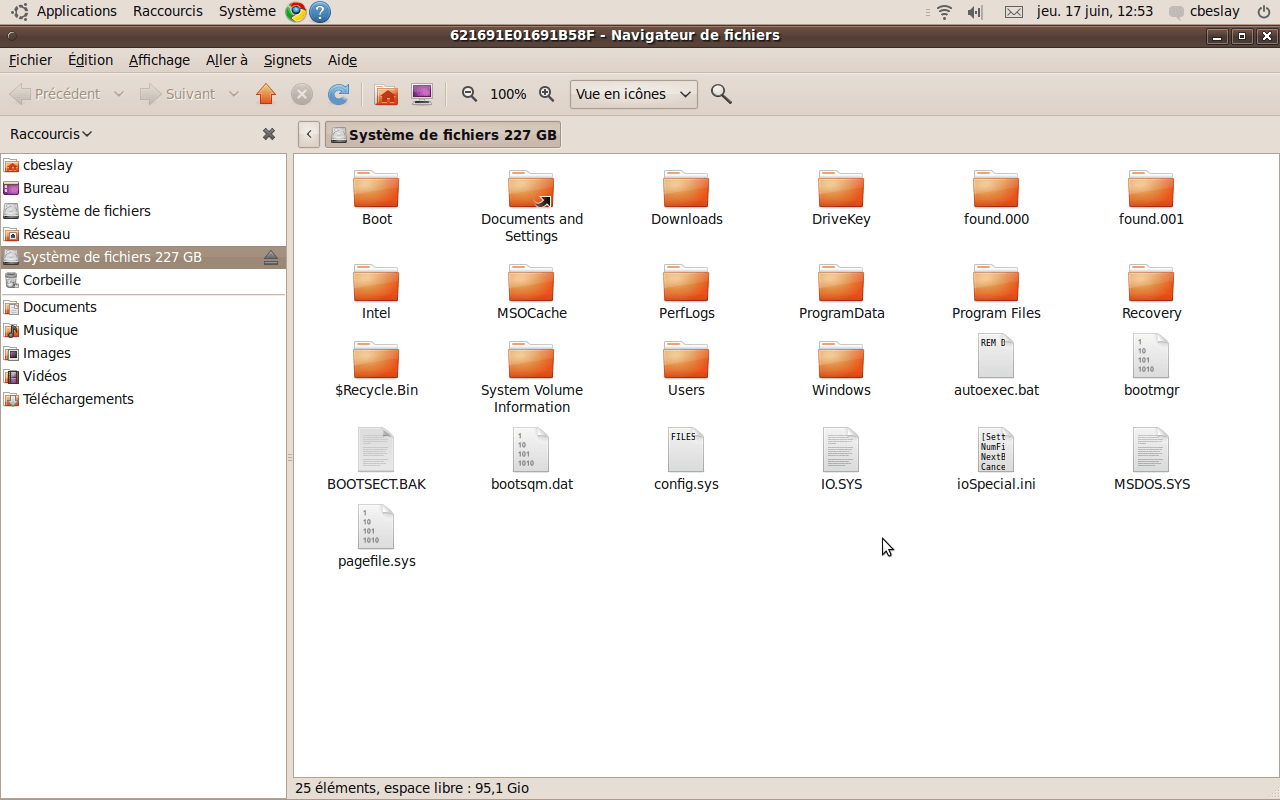
montez le disque Windows. Pour cela, cliquez sur Raccourcis dans le menu du haut, puis sur le disque correspondant à votre partition/disque Windows (cherchez celui qui a la même taille).

Etape 4:

notez l’étiquette de votre disque dur. Dans la fenêtre qui s’ouvre, la barre de titre contient quelque chose du genre AC24FEB56EFA31EC.

Etape 5:

ouvrez un terminal (Applications->Accessoires->Terminal)

Etape 6 (la plus délicate):

tapez
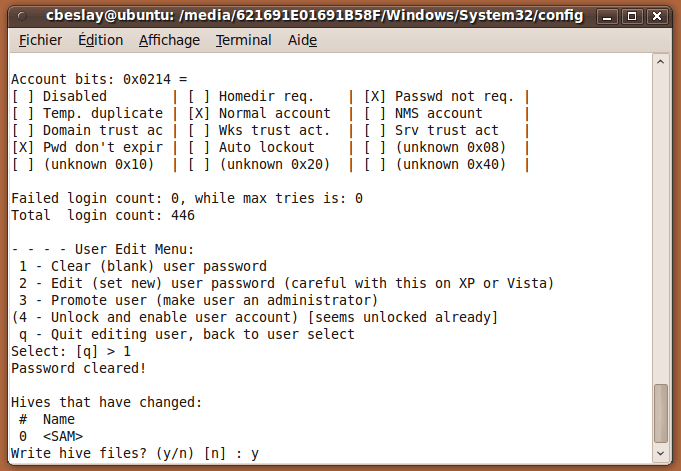
cd /media//WINDOWS/system32/config/
Par exemple
cd /media/AC24FEB56EFA31EC/WINDOWS/system32/config/
Tapez ensuite
sudo chntpw SAM
A vous de choisir maintenant ce que vous voulez faire, 1 pour effacer le mot de passe, 2 pour le modifier, 3 pour donner le rôle d’administrateur à un utilisateur. Validez ensuite avec la touche y.
Vous pouvez aussi choisir de modifier un autre mot de passe que celui de l’administrateur en tapant
sudo chntpw -u user SAM

Etape 7:

Voilà, redémarrez et entrez dans Windows.
Comment se protéger de cette attaque? Changer l’ordre de boot pour ne pas commencer par le CD et mettre un mot de passe BIOS.

الجمعة، 18 يونيو 2010

Tutorial On Getting Free .com/.net/.org.. Domain With Hosting


STEP 1:
We need to install mozilla firefox ... if u dont have it download it here:
http://www.mozilla.com/en-US/products/download.html

Then we need proxy, german proxy u can find some german proxys here:
http://www.xroxy.com/proxylist.php?port=...ity=#table
when u got a proxy test it here:
http://ip-adress.com
if it shows your location then the proxy wasnt valid if it http://www.mozilla.com/en-US/products/do....htmlshows a location on germany it is a valid proxy.


STEP 2:
Go here
Domain registrieren :: http://www.domain24.de/

Then type the domain you want and press suchen - Like in screen shoot!

[Image: 55183955.jpg]

STEP 3:
Then u get a list of the domain u choose, chek any domain u want but not the domain that says VERGEBEN, cause that means
that it is taken, and then press The button .... - Like in screen shoot!

[Image: 11523727.jpg]


Then click "Melden sie sich hier an" - Like in screen shoot!

[Image: 18152449.jpg]

STEP 5:
Then it asks for name, surname, adress,phone number .... type everything fake ... u can do it like in image but at the phone number type this
030- ( 7numbers what u want), and the email... type your gmail account! and press WEITER! - Like in screen shoot!

[Image: 43232390.jpg]

STEP 6:
Now you need to type a BLZ konto .. go here
http://bing.com and search for this :
"blz konto postbank germany 2009" without ""
When u find one it should look like this

[Image: 77693319.jpg]

Then type it in that format here and then press WEITER - Like in screen shoot!

[Image: 48151439.jpg]

STEP 7:
Now accept the TOS and press Anmelden! Now wait about 24h until the domain is active:D - Like in screen shoot!

[Image: 81519776.jpg]

STEP 8:
Login to your gmail account and chek your imbox for a message, if u got a message it should look like this! - Like in screen shoot.

[Image: 30478511.jpg]

If yes you got your account login details ! Login with your email and the password that they send to you.

STEP 9:
Now we are going to buy hosting :D if u see your domain there press WEBSPACE ...follow the image.
First do this

[Image: 99567336.jpg]

Then press DOMAINS like this


[Image: 83666680.jpg]

Then chek if it is activated .... if it shows you this,

Thread continued below(maximum Picture limit)

[Image: 99390962.jpg]

then your domain isnt activated yet wait 24h from the registration :D
but if it shows you this

[Image: 25806114.jpg]

then your domain is activated ... press then WEBSPACE ... like in that pic!

STEP 10:
Then u see some thing like this ...

[Image: 45666732.jpg]

Pres the last one ... the 5th press the button down!

Almost done :D lol

STEP 11:
After u did that u are going to recviev about 3 or 4 mails ... i can be after 1 hour .... dont know ... but you are going to recvieve something:D
Search for a mail named
Domain 24 - Webspace bestellung
that looks like this!

[Image: 64435254.jpg]

STEP 12:
http://www.ispcp.adminfrontend.de/
Default PLESK Page
And login:
The username should be the domain that u bought
The password is your account password that u got in the first mail:D

STEP 13:
Then when you are loged in press on the TOP menu press an icon that says:
"FTP zugange"
And then on the menu in the left side press:
"FTP-zugang anlegen" - Like in screen shoot!

[Image: 97825691.jpg]

LAST STEP - STEP 14:
Create your ftp account
First write the username you want ...
Then twice the password and press
"Anlegen"

[Image: 79092584.jpg]

Your username is going to be
username@yourdomain.com or .net ... or what u choosed:D

--
Congrats now wait about 6 hours, untill the FTP account is activated :D
Chek it with your FTP CLIENT every hour if it is avtivated, if it is activated you are going to see about 4 or 5 folders:D
Dont delete them, you should upload your files at the folder named
HTDOCS or something like this...
by Mr electroman 
TH3-pro.blogspot.com

التصنيفات


‏إظهار الرسائل ذات التسميات howto; General Hacking. إظهار كافة الرسائل

Physical Security


Physical Security

The first layer of security you need to take into account is the physical security of your computer systems. Who has direct physical access to your machine? Should they? Can you protect your machine from their tampering? Should you?
How much physical security you need on your system is very dependent on your situation, and/or budget.
If you are a home user, you probably don't need a lot (although you might need to protect your machine from tampering by children or annoying relatives). If you are in a lab, you need considerably more, but users will still need to be able to get work done on the machines. Many of the following sections will help out. If you are in an office, you may or may not need to secure your machine off-hours or while you are away. At some companies, leaving your console unsecured is a termination offense.
Obvious physical security methods such as locks on doors, cables, locked cabinets, and video surveillance are all good ideas, but beyond the scope of this document. :)

3.1. Computer locks

Many modern PC cases include a "locking" feature. Usually this will be a socket on the front of the case that allows you to turn an included key to a locked or unlocked position. Case locks can help prevent someone from stealing your PC, or opening up the case and directly manipulating/stealing your hardware. They can also sometimes prevent someone from rebooting your computer from their own floppy or other hardware.
These case locks do different things according to the support in the motherboard and how the case is constructed. On many PC's they make it so you have to break the case to get the case open. On some others, they will not let you plug in new keyboards or mice. Check your motherboard or case instructions for more information. This can sometimes be a very useful feature, even though the locks are usually very low-quality and can easily be defeated by attackers with locksmithing.
Some machines (most notably SPARC's and macs) have a dongle on the back that, if you put a cable through, attackers would have to cut the cable or break the case to get into it. Just putting a padlock or combo lock through these can be a good deterrent to someone stealing your machine.

3.2. BIOS Security

The BIOS is the lowest level of software that configures or manipulates your x86-based hardware. LILO and other Linux boot methods access the BIOS to determine how to boot up your Linux machine. Other hardware that Linux runs on has similar software (Open Firmware on Macs and new Suns, Sun boot PROM, etc...). You can use your BIOS to prevent attackers from rebooting your machine and manipulating your Linux system.
Many PC BIOSs let you set a boot password. This doesn't provide all that much security (the BIOS can be reset, or removed if someone can get into the case), but might be a good deterrent (i.e. it will take time and leave traces of tampering). Similarly, on S/Linux (Linux for SPARC(tm) processor machines), your EEPROM can be set to require a boot-up password. This might slow attackers down.
Another risk of trusting BIOS passwords to secure your system is the default password problem. Most BIOS makers don't expect people to open up their computer and disconnect batteries if they forget their password and have equipped their BIOSes with default passwords that work regardless of your chosen password. Some of the more common passwords include:
j262 AWARD_SW AWARD_PW lkwpeter Biostar AMI Award bios BIOS setup cmos AMI!SW1 AMI?SW1 password hewittrand shift + s y x z
I tested an Award BIOS and AWARD_PW worked. These passwords are quite easily available from manufacturers' websites and http://astalavista.box.sk and as such a BIOS password cannot be considered adequate protection from a knowledgeable attacker.
Many x86 BIOSs also allow you to specify various other good security settings. Check your BIOS manual or look at it the next time you boot up. For example, some BIOSs disallow booting from floppy drives and some require passwords to access some BIOS features.
Note: If you have a server machine, and you set up a boot password, your machine will not boot up unattended. Keep in mind that you will need to come in and supply the password in the event of a power failure. ;(

3.3. Boot Loader Security

The various Linux boot loaders also can have a boot password set. LILO, for example, has password and restricted settings; password requires password at boot time, whereas restricted requires a boot-time password only if you specify options (such as single) at the LILO prompt.
>From the lilo.conf man page:
password=password
The per-image option `password=...' (see below) applies to all images.

restricted
The per-image option `restricted' (see below) applies to all images.

password=password
Protect the image by a password.

restricted
A password is only required to boot the image if
parameters are specified on the command line
(e.g. single).
Keep in mind when setting all these passwords that you need to remember them. :) Also remember that these passwords will merely slow the determined attacker. They won't prevent someone from booting from a floppy, and mounting your root partition. If you are using security in conjunction with a boot loader, you might as well disable booting from a floppy in your computer's BIOS, and password-protect the BIOS.
Also keep in mind that the /etc/lilo.conf will need to be mode "600" (readable and writing for root only), or others will be able to read your passwords!
>From the GRUB info page: GRUB provides "password" feature, so that only administrators can start the interactive operations (i.e. editing menu entries and entering the command-line interface). To use this feature, you need to run the command `password' in your configuration file (*note password::), like this:
password --md5 PASSWORD
If this is specified, GRUB disallows any interactive control, until you press the key
and enter a correct password. The option `--md5' tells GRUB that `PASSWORD' is in MD5 format. If it is omitted, GRUB assumes the `PASSWORD' is in clear text.
You can encrypt your password with the command `md5crypt' (*note md5crypt::). For example, run the grub shell (*note Invoking the grub shell::), and enter your password:
grub> md5crypt Password: ********** Encrypted: $1$U$JK7xFegdxWH6VuppCUSIb.
Then, cut and paste the encrypted password to your configuration file.
Grub also has a 'lock' command that will allow you to lock a partition if you don't provide the correct password. Simply add 'lock' and the partition will not be accessable until the user supplies a password.
If anyone has security-related information from a different boot loader, we would love to hear it. (grub, silo, milo, linload, etc).
Note: If you have a server machine, and you set up a boot password, your machine will not boot up unattended. Keep in mind that you will need to come in and supply the password in the event of a power failure. ;(

3.4. xlock and vlock

If you wander away from your machine from time to time, it is nice to be able to "lock" your console so that no one can tamper with, or look at, your work. Two programs that do this are: xlock and vlock.
xlock is a X display locker. It should be included in any Linux distributions that support X. Check out the man page for it for more options, but in general you can run xlock from any xterm on your console and it will lock the display and require your password to unlock.
vlock is a simple little program that allows you to lock some or all of the virtual consoles on your Linux box. You can lock just the one you are working in or all of them. If you just lock one, others can come in and use the console; they will just not be able to use your virtual console until you unlock it. vlock ships with RedHat Linux, but your mileage may vary.
Of course locking your console will prevent someone from tampering with your work, but won't prevent them from rebooting your machine or otherwise disrupting your work. It also does not prevent them from accessing your machine from another machine on the network and causing problems.
More importantly, it does not prevent someone from switching out of the X Window System entirely, and going to a normal virtual console login prompt, or to the VC that X11 was started from, and suspending it, thus obtaining your privileges. For this reason, you might consider only using it while under control of xdm.

3.5. Security of local devices

If you have a webcam or a microphone attached to your system, you should consider if there is some danger of a attacker gaining access to those devices. When not in use, unplugging or removing such devices might be an option. Otherwise you should carefully read and look at any software with provides access to such devices.

3.6. Detecting Physical Security Compromises

The first thing to always note is when your machine was rebooted. Since Linux is a robust and stable OS, the only times your machine should reboot is when you take it down for OS upgrades, hardware swapping, or the like. If your machine has rebooted without you doing it, that may be a sign that an intruder has compromised it. Many of the ways that your machine can be compromised require the intruder to reboot or power off your machine.
Check for signs of tampering on the case and computer area. Although many intruders clean traces of their presence out of logs, it's a good idea to check through them all and note any discrepancy.
It is also a good idea to store log data at a secure location, such as a dedicated log server within your well-protected network. Once a machine has been compromised, log data becomes of little use as it most likely has also been modified by the intruder.
The syslog daemon can be configured to automatically send log data to a central syslog server, but this is typically sent unencrypted, allowing an intruder to view data as it is being transferred. This may reveal information about your network that is not intended to be public. There are syslog daemons available that encrypt the data as it is being sent.
Also be aware that faking syslog messages is easy -- with an exploit program having been published. Syslog even accepts net log entries claiming to come from the local host without indicating their true origin.
Some things to check for in your logs:
  • Short or incomplete logs.
  • Logs containing strange timestamps.
  • Logs with incorrect permissions or ownership.
  • Records of reboots or restarting of services.
  • missing logs.
  • su entries or logins from strange places.

Modifier mot de passe Windows depuis Ubuntu


Windows est faible, tout le monde le sait. Un mot de passe de session Windows n’est qu’une barrière physique visant à décourager les pirates lambdas. Mais il est tellement simple d’accéder à une session Windows protégée par mot de passe :)
La preuve dans la suite.
Ce tutoriel a un but instructif. Fotozik ne pourra être tenu pour responsable de vos quelconques actes malveillants.
Ce hack fonctionne pour toutes les versions de Windows 2000 à Windows 7.
Il vous faudra:
- un Live CD ubuntu (9.10 de préférence)
- le paquet chntpw (http://packages.ubuntu.com/lucid/chntpw)
C’est tout, je peux accéder à n’importe quel ordinateur Windows avec ça? Oui, c’est tout.

Etape 1:

démarrez le Live CD Ubuntu (il suffit la plupart du temps d’allumer l’ordinateur avec le cd à l’intérieur).

Etape 2:

installez le paquet chntpw. Soit vous l’avez sur une clé usb et vous double-cliquez dessus, soit vous le téléchargez depuis l’adresse http://packages.ubuntu.com/lucid/chntpw et vous double-cliquez dessus.

Etape 3:

montez le disque Windows. Pour cela, cliquez sur Raccourcis dans le menu du haut, puis sur le disque correspondant à votre partition/disque Windows (cherchez celui qui a la même taille).

Etape 4:

notez l’étiquette de votre disque dur. Dans la fenêtre qui s’ouvre, la barre de titre contient quelque chose du genre AC24FEB56EFA31EC.

Etape 5:

ouvrez un terminal (Applications->Accessoires->Terminal)

Etape 6 (la plus délicate):

tapez
cd /media//WINDOWS/system32/config/
Par exemple
cd /media/AC24FEB56EFA31EC/WINDOWS/system32/config/
Tapez ensuite
sudo chntpw SAM
A vous de choisir maintenant ce que vous voulez faire, 1 pour effacer le mot de passe, 2 pour le modifier, 3 pour donner le rôle d’administrateur à un utilisateur. Validez ensuite avec la touche y.
Vous pouvez aussi choisir de modifier un autre mot de passe que celui de l’administrateur en tapant
sudo chntpw -u user SAM

Etape 7:

Voilà, redémarrez et entrez dans Windows.
Comment se protéger de cette attaque? Changer l’ordre de boot pour ne pas commencer par le CD et mettre un mot de passe BIOS.

Tutorial On Getting Free .com/.net/.org.. Domain With Hosting


STEP 1:
We need to install mozilla firefox ... if u dont have it download it here:
http://www.mozilla.com/en-US/products/download.html

Then we need proxy, german proxy u can find some german proxys here:
http://www.xroxy.com/proxylist.php?port=...ity=#table
when u got a proxy test it here:
http://ip-adress.com
if it shows your location then the proxy wasnt valid if it http://www.mozilla.com/en-US/products/do....htmlshows a location on germany it is a valid proxy.


STEP 2:
Go here
Domain registrieren :: http://www.domain24.de/

Then type the domain you want and press suchen - Like in screen shoot!

[Image: 55183955.jpg]

STEP 3:
Then u get a list of the domain u choose, chek any domain u want but not the domain that says VERGEBEN, cause that means
that it is taken, and then press The button .... - Like in screen shoot!

[Image: 11523727.jpg]


Then click "Melden sie sich hier an" - Like in screen shoot!

[Image: 18152449.jpg]

STEP 5:
Then it asks for name, surname, adress,phone number .... type everything fake ... u can do it like in image but at the phone number type this
030- ( 7numbers what u want), and the email... type your gmail account! and press WEITER! - Like in screen shoot!

[Image: 43232390.jpg]

STEP 6:
Now you need to type a BLZ konto .. go here
http://bing.com and search for this :
"blz konto postbank germany 2009" without ""
When u find one it should look like this

[Image: 77693319.jpg]

Then type it in that format here and then press WEITER - Like in screen shoot!

[Image: 48151439.jpg]

STEP 7:
Now accept the TOS and press Anmelden! Now wait about 24h until the domain is active:D - Like in screen shoot!

[Image: 81519776.jpg]

STEP 8:
Login to your gmail account and chek your imbox for a message, if u got a message it should look like this! - Like in screen shoot.

[Image: 30478511.jpg]

If yes you got your account login details ! Login with your email and the password that they send to you.

STEP 9:
Now we are going to buy hosting :D if u see your domain there press WEBSPACE ...follow the image.
First do this

[Image: 99567336.jpg]

Then press DOMAINS like this


[Image: 83666680.jpg]

Then chek if it is activated .... if it shows you this,

Thread continued below(maximum Picture limit)

[Image: 99390962.jpg]

then your domain isnt activated yet wait 24h from the registration :D
but if it shows you this

[Image: 25806114.jpg]

then your domain is activated ... press then WEBSPACE ... like in that pic!

STEP 10:
Then u see some thing like this ...

[Image: 45666732.jpg]

Pres the last one ... the 5th press the button down!

Almost done :D lol

STEP 11:
After u did that u are going to recviev about 3 or 4 mails ... i can be after 1 hour .... dont know ... but you are going to recvieve something:D
Search for a mail named
Domain 24 - Webspace bestellung
that looks like this!

[Image: 64435254.jpg]

STEP 12:
http://www.ispcp.adminfrontend.de/
Default PLESK Page
And login:
The username should be the domain that u bought
The password is your account password that u got in the first mail:D

STEP 13:
Then when you are loged in press on the TOP menu press an icon that says:
"FTP zugange"
And then on the menu in the left side press:
"FTP-zugang anlegen" - Like in screen shoot!

[Image: 97825691.jpg]

LAST STEP - STEP 14:
Create your ftp account
First write the username you want ...
Then twice the password and press
"Anlegen"

[Image: 79092584.jpg]

Your username is going to be
username@yourdomain.com or .net ... or what u choosed:D

--
Congrats now wait about 6 hours, untill the FTP account is activated :D
Chek it with your FTP CLIENT every hour if it is avtivated, if it is activated you are going to see about 4 or 5 folders:D
Dont delete them, you should upload your files at the folder named
HTDOCS or something like this...
by Mr electroman 
TH3-pro.blogspot.com
تطوير : مدونة حكمات